1.12 Output FB
1.12.1 Output FB to Text
Step 1
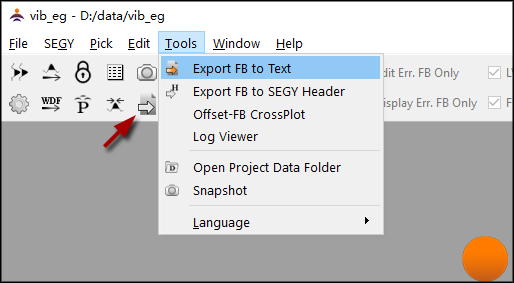
As in Fig.1-12-1, select the menu "Tools->Export FB to Text", or click the icon
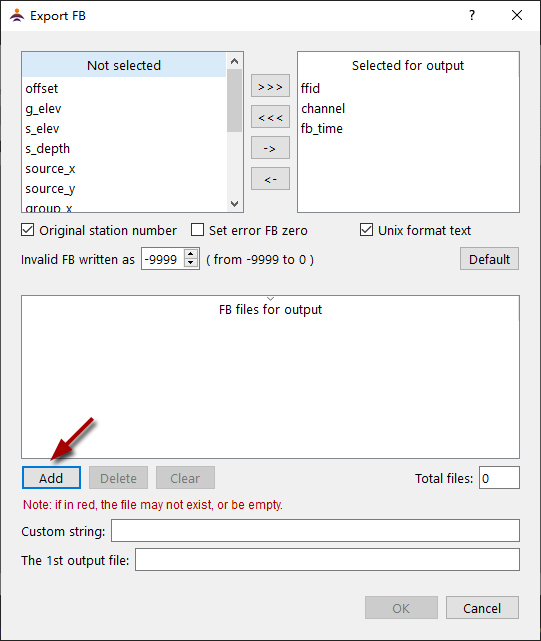
to open the dialog (Fig.1-12-2).
Step 2
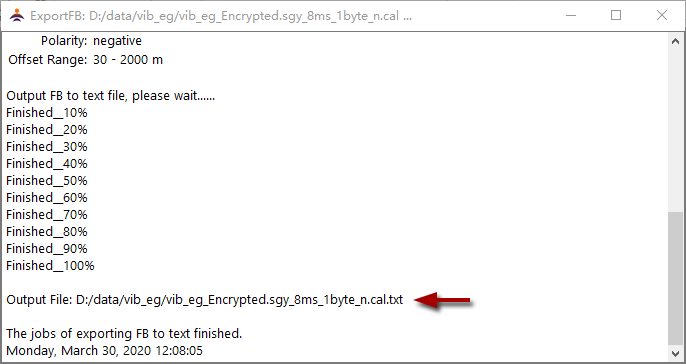
Add the FB file "vib_eg_Encrypted.sgy_8ms_1byte_n.cal" and click "OK" as shown in Fig.1-12-3. The job information is as in Fig.1-12-4.
The output file is "vib_eg_Encrypted.sgy_8ms_1byte_n.cal.txt".

Step 3
Click the toolbar icon
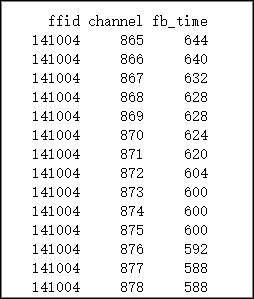
to open the project directory. Open the text file with a text editor, you can see the data as Fig.1-12-5.
1.12.2 Output FB to SEGY Header
Step 1
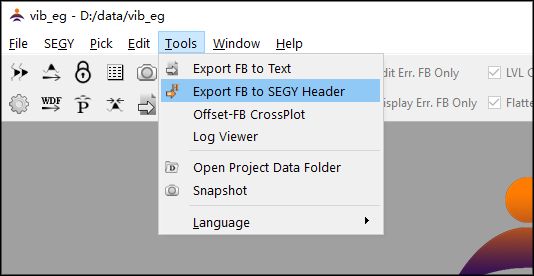
As in Fig.1-12-6, select the menu "Tools->Export FB to SEGY Header", or click the icon
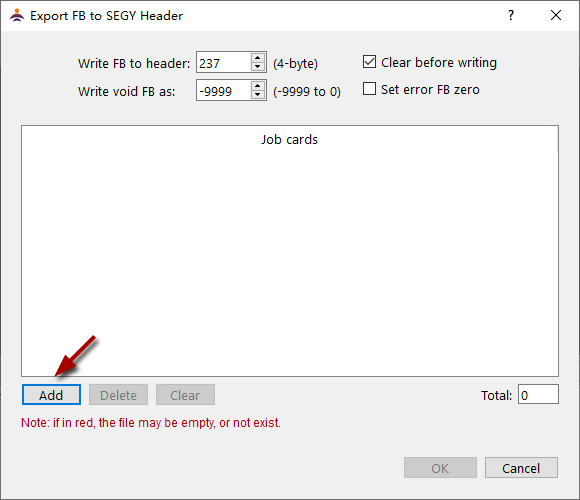
to open the dialog (Fig.1-12-7).
Step 2
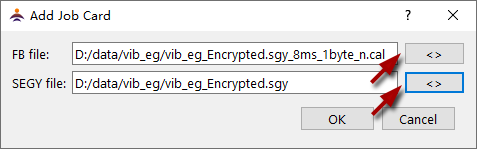
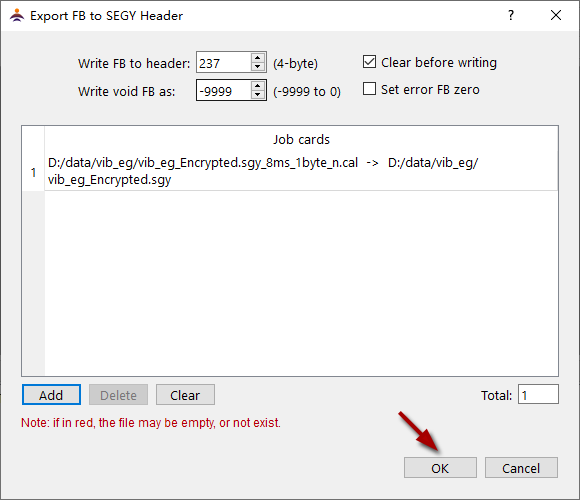
As in Fig.1-12-7, click"Add" to open a dialog for job card building (Fig.1-12-8). Select the FB file and the SEGY file to which the FB time will be written. Click "OK", the job card will be added to the job card list as in Fig.1-12-9.
Step 3
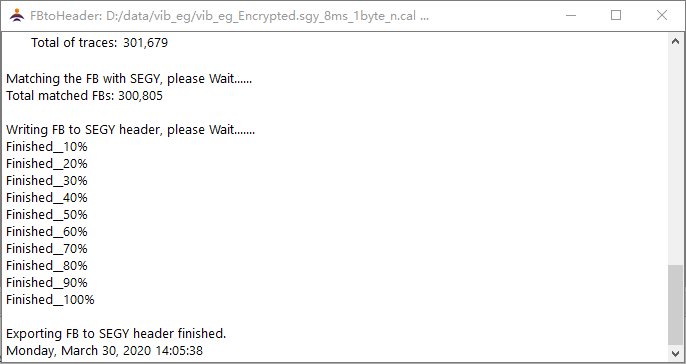
Click "OK" on the dialog to execute the job, and the information of the job is shown in Fig.1-12-10.
Note: it is strongly suggested that the SEGY file to which the FB is written should be trimed to one sample length by the menu "SEGY->Export SEGY". This way the header writing will be much more time-saving.